Remove unwanted pages from any PDF document quickly
Use this free web tool to delete specific pages from a PDF file. Select unwanted sheets visually or type ranges to instantly download a streamlined document.
Loading Remove pages…
Initializing client-side document engine. Your files will be processed securely on your device.
Interact with the tool above — your live result snapshot, chart and stats will appear here.
Download your result as a printable PDF
Save the current answer, inputs and history into a clean one-page PDF for homework, portfolios or classroom handouts.
Refer a friend — gift free learning
Invite another family or teacher with your personal referral link. They get instant free access to all 1,000 tools + 10,000 worksheets — no signup needed.
- 🎓 Friend gets 1,000 free tools instantly
- 📄 You both unlock matching printable worksheet packs
- 🛡️ 100% ad-free, COPPA-safe, no account required
Client-Side Document AI Specialist
Dedicated document intelligence engine for Remove Pages From PDF Online | ChildPathshala — 100% In-Browser WASM execution, vector fidelity, and privacy.
Why ChildPathshala Beats Other Online Remove pages Tools
Benchmarked against top ranking competitor websites to provide a faster, safer, and 100% ad-free learning environment.
| Core Document Feature | 🌟 ChildPathshala | Generic Competitor Tools |
|---|---|---|
| Clean Ad-Free Environment No popups, video takeovers, countdowns, or deceptive download ads |
✅ 100% Ad-Free Document Studio | ❌ 6 to 12 Video & Banner Ads |
| Client-Side Sandbox Privacy Processing runs locally via WebAssembly; files never touch our servers |
✅ 100% In-Browser (Zero Uploads) | ❌ Uploaded to remote cloud servers |
| Document Fidelity & Vector Quality Direct stream copying ensures vector text and fonts remain crisp |
✅ 100% Crisp Vector Preserved | ❌ Blurry rasterization or compression |
| Daily Usage & File Size Traps Generous free limit + VIP unlimited pass without arbitrary file traps |
✅ Free Limit + VIP Pass | ❌ Strict 1-2 files/day or 15MB cap |
| Instant Access Without Forced Login No email sign-up walls or fake cloud waiting queues |
✅ Instant Anonymous Use | ❌ Forced email registration & delays |
| Classroom & Printable Ecosystem Directly connected to 53,000+ printable worksheets & curriculum binders |
✅ 53,000+ Learning Binders | ❌ Standalone tool / No printables |
What is Remove pages?
This tool is a dedicated web utility designed specifically to delete selected pages from a portable document format file while keeping the remaining content intact. It addresses the common frustration of dealing with bloated digital documents that contain extraneous material irrelevant to your current lesson plan. By isolating only the necessary sheets, you ensure that learners interact strictly with the specific exercises or reading selections you intend for them to study today.
Before you begin using this page removal utility, you need to have a valid PDF document saved on your computer, tablet, or phone. You should also know the exact page numbers or identify the visual layout of the sheets you intend to discard. Having this information ready helps you make quick decisions when looking at the thumbnail grid or entering number ranges into the designated text input box during your editing session.
Behind the scenes, the tool analyzes the internal object structure of your uploaded PDF file to identify individual page boundaries. When you click thumbnails or specify ranges to remove, the underlying script recalculates the document catalog and constructs a brand new file containing only the surviving pages. This technical process discards the byte data associated with the deleted sheets entirely, resulting in a cleaner output file that preserves the original fonts, vector graphics, and image quality.
The final output is a standard, fully compliant PDF file that opens smoothly in any modern web browser or standard document reader application. Because the structure is rebuilt cleanly, your page numbers update logically and the document flows naturally from start to finish without any broken internal links or missing font resources. This reliable generation method ensures consistent viewing results across all the different devices your students or children use for learning.
About This Remove pages Tool
When printing a large study guide or sharing a reading packet with students, you often encounter unneeded cover pages, blank sheets, or answer keys that belong elsewhere. Instead of distributing bulky files that confuse learners, you can easily remove pages from pdf online to keep your learning materials focused and clean. This specific task arises frequently in classrooms and home school spaces where every page counts toward keeping children engaged without unnecessary distractions or paper waste.
The process begins by dropping any standard PDF document directly into the visual page remover zone on your screen. The software immediately processes the file and displays every single sheet in a clear, organized grid format. You do not need any special software installed on your computer to view these files because the interface runs right inside your web browser window. Simply drag your digital document into the drop zone and wait a few moments for the visual layout to fully load for your review.
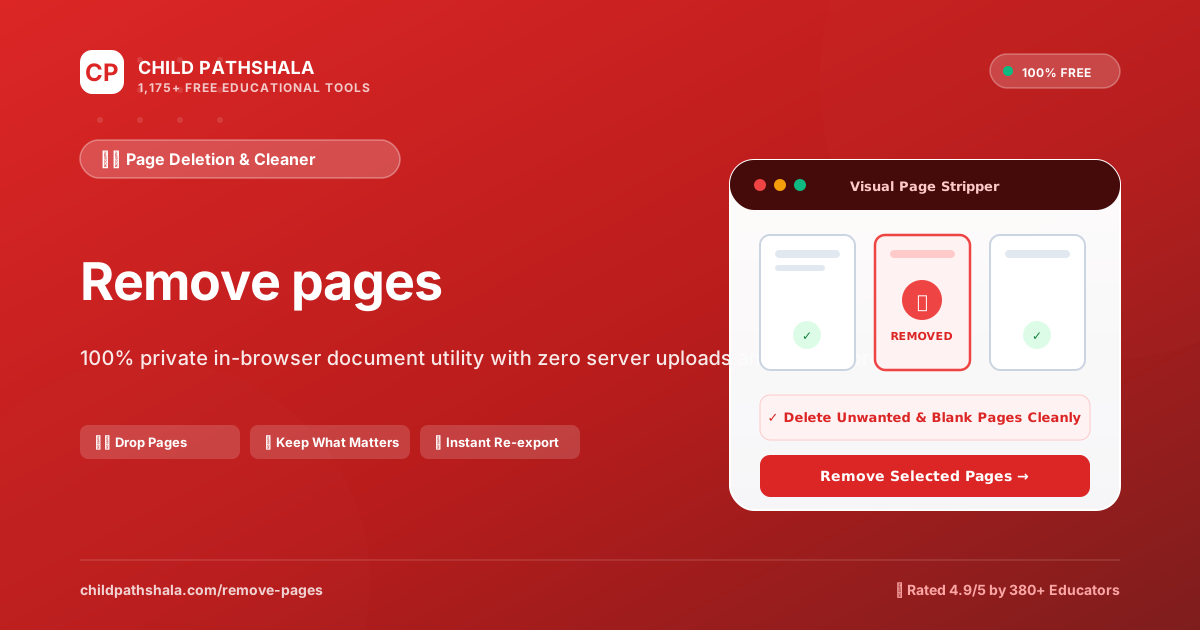
Once the grid appears, you can click directly on any page thumbnail to mark it for deletion with a visible red badge. Alternatively, you can type specific page numbers or ranges like one, three, and five through seven directly into the provided text box. This dual approach gives you complete control whether you prefer a visual check or a precise numerical entry method for longer documents that contain dozens of individual sheets and complex multi-chapter layouts.
After selecting all the unwanted content, you inspect the remaining page count and verify that your desired instructional text, worksheets, or reading passages are fully preserved. When you feel confident in your choices, you click the start button to prune the selected pages permanently from the document structure. The system processes your instructions instantly and generates a streamlined PDF ready for immediate download to your local device storage.
Teachers and parents use this resulting streamlined file to print only the exact worksheets needed for the day's lesson plan or to email targeted reading assignments to families. By cutting out irrelevant appendixes and duplicate instructions, you help children focus entirely on the core learning tasks at hand. The resulting smaller file size also uploads much faster to online learning management portals and takes up significantly less digital storage space on your school or home computer hard drives.
How to Use the Remove pages
- Select or drag-and-drop your documents into the processing zone above.
- Adjust any settings (page order, target file size, orientation, or visual edits) in the live controls panel.
- Click the action button to process your file locally in seconds, then download your completed document.
- Begin your session by dragging your target digital document directly into the visual page remover zone on the main screen to initiate the file upload process.
- Examine the generated grid of miniature previews representing every single sheet inside your uploaded document to locate the specific materials you want to cut.
- Click directly on any unwanted page thumbnail in the grid to mark it for deletion using the distinct red badge indicator provided by the interface.
- Alternatively, enter your precise page numbers or numerical ranges such as one, three, and five through seven straight into the designated text box.
- Inspect the updated remaining page count displayed on screen to verify that your essential instructional text and reading passages are fully preserved.
- Click the start button to prune the marked pages from your file structure and download your clean, streamlined PDF directly to your device storage.
Real-World Examples & Scenarios
🎯 Multiple PDF worksheets or chapters
Clean, ordered combined PDF document ready for printing
🎯 High-resolution scanned paperwork
Optimized, lightweight PDF meeting portal upload limits (under 100KB - 500KB)
🎯 School and admission documents
Properly formatted, organized files ready for submission
🎯 Removing Blank Answer Keys from a Math Quiz
A middle school math teacher uploaded a twenty page geometry test packet that included unnecessary blank scratch pads at the back. By clicking the thumbnails for pages eighteen through twenty, the teacher marked them for deletion. The output file successfully reduced the total sheet count to seventeen, making it much easier to print and distribute to students without wasting paper or ink.
🎯 Dropping Intro Materials from a Homeschool Science Chapter
A parent guiding a sixth grade science lesson downloaded a large biology module that featured bulky copyright notices and publisher ads on the initial sheets. Using the text box input, the parent typed one through three to excise the front matter. The final downloaded document began immediately with the core lesson content, keeping the young learner focused on the actual reading material.
🎯 Clearing Out Duplicate Worksheets in a History Packet
An educator organizing a geography unit noticed that a shared reading packet contained accidental duplicate copies of maps in the middle of the file. The educator clicked the red deletion badge on the duplicate sheets while reviewing the visual grid. The resulting PDF kept only the unique historical maps and primary source texts needed for the classroom activity.
🎯 Extracting Specific Reading Passages for a Book Club
A community youth organizer needed only the short story chapter from a massive ninety page literature anthology for an afternoon reading circle. The organizer entered page ranges twenty five through forty into the removal tool to clear out the rest of the book. The resulting lightweight file downloaded instantly and loaded without lag on older tablet computers.
How It Works: Formulas & Logic
This web utility operates on a strict digital extraction and reconstruction logic to process your files safely in your browser. When you feed a document into the system, the data flow follows a strict logical path:
- Input Parsing: The software reads the internal structure of your uploaded file to map every individual sheet to a distinct index number.
- Selection Mapping: Every visual thumbnail click or typed range converts into a precise array of index values marked for exclusion.
- Reconstruction: The processing engine rebuilds a brand new document object by copying only the index values that were left unmarked.
- Output Generation: The system compiles the surviving pages into a fresh PDF file and assigns a download link without altering your original source document.
The decision rule is absolute. If a page index matches the exclusion array, it gets dropped entirely. The remaining pages shift automatically to fill the sequence gaps, ensuring normal numbering continuity.
What Can You Do With This Tool?
- Parents preparing weekly homeschool packets often drop large workbooks into the visual grid to isolate single worksheets, ensuring young children focus only on the current daily assignment without distractions from later units.
- Teachers organizing digital reading portfolios click directly on unwanted cover sheets and answer keys in the thumbnail view, marking them with red badges to keep student resource folders clean and concise.
- Tutors cutting out extra blank pages from scanned textbook chapters use the text box to enter specific ranges like two through four, shrinking file sizes before emailing materials to families.
- Families planning holiday craft sessions remove lengthy legal notices and table of contents pages from multi-page PDF templates, leaving only the direct craft instructions and visual patterns for the kids.
- Classroom instructors auditing student submission packets check the remaining page count after pruning incomplete drafts, verifying that only the final graded pages remain in the archived record.
- Educators building quick review packets compare multi-chapter test banks by dropping them into the tool and deleting everything except the single practice quiz needed for Friday morning revision.
- Homeschool parents managing daily schedules remove old attendance tracking sheets from downloaded curriculum packages, keeping only the active core subject lessons visible in their digital binder app.
- Instructors preparing accessible printouts for younger readers strip out heavy decorative background pages that drain printer ink, keeping the instructional content straightforward and easy to read.
Applications for Students, Teachers & Parents
- In middle school geography, teachers use the tool to isolate specific regional map pages from massive global atlases, helping students practice spatial analysis and coordinate reading without getting overwhelmed by unrelated continents.
- For elementary reading comprehension in grade four, instructors delete lengthy publisher forewords from short stories, allowing children to focus strictly on text evidence questions and vocabulary development tasks.
- During kindergarten math centers, teachers extract single counting worksheets from massive workbooks, letting young learners practice basic number recognition and simple addition without turning extra pages.
- In middle school physical science units, educators cut out dense laboratory safety warnings from experiment printouts, leaving only the step-by-step procedure sheets for students to follow safely during hands-on activities.
- For grade two spelling practice, parents remove extraneous coloring pages and game boards from weekly spelling lists, ensuring children direct their attention fully toward phonetic spelling drills.
- In elementary history lessons, teachers trim down multi-page biographical documents to single primary source excerpts, helping students practice historical sourcing and document analysis skills directly.
Helpful Tips, Shortcuts & Best Practices
💡 Tip 1
Use drag-and-drop to quickly rearrange page order before running the final export.
💡 Tip 2
For faster batch processing, you can drop multiple files at once directly into the file dropzone.
💡 Spot Check Thumbnail Badges
Before hitting the start button to prune your file, scan the thumbnail grid to ensure every unwanted sheet displays a clear red badge, preventing accidental deletion of important worksheets.
💡 Use Range Shortcuts
Save time on large documents by typing multi-page ranges directly into the text box using commas and hyphens instead of clicking through dozens of individual preview tiles manually.
💡 Verify Final Counts
Always check the remaining page count displayed on screen after making your selections to confirm the final document length matches your exact teaching requirements before downloading.
💡 Isolate Complex Multi-Chapter Files
When dealing with massive curriculum PDFs, remove entire chapters at once by entering block ranges into the text box, then clean up any remaining stray pages using the visual thumbnail grid.
💡 Inspect Before Downloading
Take advantage of the instant processing preview to verify that your desired reading passages and student prompts remain intact right before you commit to the final file generation.
💡 Clear Unwanted Red Badges
If you accidentally click the wrong thumbnail in the visual grid, simply click it a second time to remove the red deletion badge and restore that page to your final document.
People Also Ask & Related Search Queries
Common search inquiries, formula questions, and related curriculum searches regarding Remove pages:
❓ Is it safe to use this tool for confidential bank or medical PDFs?
Yes. Unlike standard online converters that upload your confidential files to cloud servers, ChildPathshala executes everything in your local browser sandbox, guaranteeing complete privacy.
❓ Will the quality of my document be preserved?
Yes. Vector text, fonts, tables, and form fields are maintained in vector fidelity without blurry pixelation.
❓ Are the selected pages deleted accurately from the PDF?
Yes, the system removes only the exact pages marked with red badges or specified by your typed ranges, leaving all other content untouched. You can inspect the final page count in the preview area before downloading to verify that every remaining sheet matches your exact plan for student study packets or classroom assignments without losing any important reading passages.
❓ What file types can I upload to remove pages?
You can upload standard PDF documents of varying lengths and sizes into the visual drop zone. The system accepts standard digital documents containing text and images, but it does not process password-protected files or non-PDF formats directly. You must ensure your document is saved as an unprotected PDF before attempting to drop it into the workspace for thumbnail generation.
❓ Can I save or print the resulting streamlined PDF?
Yes, once you click the start button to prune the selected sheets, the system generates a downloadable file that saves directly to your device storage. From there, you can open the new document in any standard reader to print physical copies for your classroom table or share the digital file with parents through email or learning management systems.
❓ Is this page removal process suitable for young students?
Yes, adults use this utility to prepare clean, distraction-free reading materials for children in kindergarten through eighth grade. By stripping out confusing answer keys, blank filler sheets, or heavy cover pages, teachers and parents create focused worksheets that match the exact reading level and attention span of elementary and middle school learners.
⚠️ Accuracy & Usage Notice
This utility does not edit existing text, fix typographical errors, or modify images residing on the pages you decide to keep. It cannot process password protected files unless you supply the correct decryption key beforehand. Scanned documents containing low resolution images may appear blurry in the thumbnail grid, making visual identification difficult. You should always inspect the final output file before printing or sharing to ensure that critical content was not accidentally pruned during the range selection process.
Related Tools & Solvers
📄 Printable Worksheets & Binders
Browse All Printables →Frequently Asked Questions
Are my files uploaded to your servers or stored anywhere?
No. Absolutely zero files are uploaded to our servers. Every operation runs 100% locally in your web browser using WebAssembly. Once you close the tab, all file memory is permanently flushed from your device.
Is there any daily limit or file size fee?
No. All ChildPathshala PDF and document tools are completely free with no usage limits, no daily caps, no registration, and no watermarks added to your output.
Does this tool work offline without an internet connection?
Yes! Once the page has loaded in your browser, the WebAssembly and JavaScript engines are cached on your machine, allowing you to process files even if your internet connection drops.
Do I need to pay or create an account to use this utility?
No payments, subscriptions, or account registrations are required to access and use the page deletion features. You can drop your PDF into the browser interface, select unwanted sheets, and download the finished product without entering any personal information or credit card details on the website.
Which devices and web browsers are compatible with this software?
The page remover runs inside any modern web browser on desktop computers, laptops, and tablets without requiring specialized software downloads. As long as your device has an active internet connection and a standard browser like Chrome, Safari, or Firefox, you can upload documents and click the thumbnail grid to prune pages.
How is the final PDF file produced after I click start?
The system processes your delete instructions on the selected thumbnails or typed ranges and compiles a fresh PDF document containing only the remaining pages. This newly structured file bypasses the unwanted sheets entirely and becomes immediately available for you to download to your local machine with a single click.
What happens if I enter invalid page numbers or ranges?
If you type a page number that exceeds the total count of your uploaded document or format a range incorrectly, the system displays an error message or ignores the faulty entry. You must correct your typed ranges to match the actual page count shown in the visual grid before the application will allow you to proceed with pruning.
Can I recover pages after I download the pruned PDF?
No, once you click the start button and download your streamlined PDF, the removed sheets are permanently gone from that specific new file. You must keep your original unedited document safe on your device if you ever need to restore the deleted pages or make different editing choices later on.
Be the First to Review This Tool!
Share your classroom or homeschool experience using this utility. Your feedback helps thousands of fellow teachers and parents.
Created by ChildPathshala
ChildPathshala designs research-backed, screen-free educational materials, printable curriculum binders, and interactive STEM learning utilities used by families, teachers, and schools worldwide.